Frequently Asked Questions
How to Load QuickUI in UE5 Development Environment?
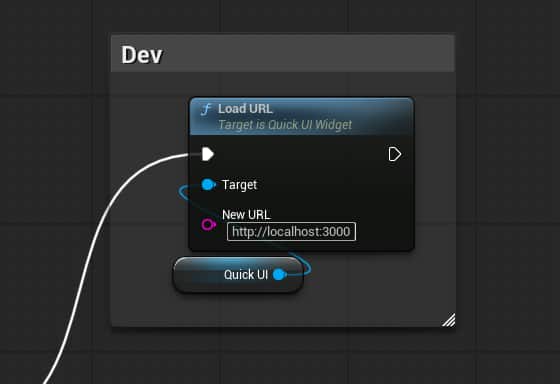
In the UE5 development environment, use LoadURL to load http://localhost:3000 to load QuickUI in development mode.
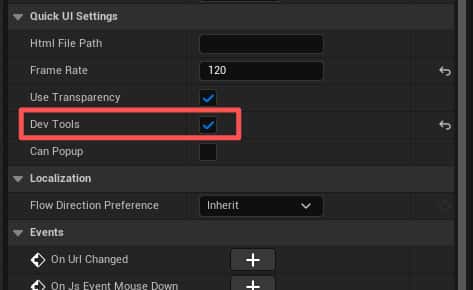
After the development tools are activated, use the shortcut Ctrl + Shift + I to open the browser console and view QuickUI console output information.
Connection & Communication
isConnected is always false
Problem: isConnected from useUEContext() always shows "Disconnected".
Cause: The web page is not running inside UE5's web browser widget, so the UE5 engine hasn't injected the ue communication object.
Solution:
- Make sure the HTML file is loaded through UE5's QuickUI plugin web browser widget, not opened directly in a desktop browser
- Run the game (Play) in the UE5 editor; the Web UI will connect automatically
- During development, check
window.uein the browser console to verify the UE communication object exists
Event sending fails: ue.uecommand.emitjsonevent is not a function
Problem: After calling the send function returned by useQuickUIEventSender, the UE5 side doesn't receive the event, and the console reports emitjsonevent is not a function.
Cause: The QuickUI plugin version in UE5 is too old, or the uecommand object is incomplete.
Solution:
- Ensure the latest version of the QuickUI plugin is installed and enabled in the UE5 project
- Verify that the event name in the UE5 blueprint matches the name passed to
useQuickUIEventSender('eventName') - During development, enter
window.uein the QuickUI DevTools console to check if the UE communication object exists
useQuickUIEventListener callback never fires
Problem: Events are listened for with useQuickUIEventListener, but the callback never executes.
Cause: ue-connect requires a root-level component to call useQuickUIEventListener first to establish the event listening channel.
Solution:
Recommended approach: Use UEProvider directly, which internally initializes event listening.
Mouse & Input
Web UI click events pass through to the UE5 scene
Problem: When clicking buttons or elements on the Web UI, mouse events pass through to the UE5 game scene, causing the UE5 character or camera to respond.
Cause: The data-nohit attribute was not added to the Web UI elements.
Solution: Add the data-nohit attribute to containers or elements that should block mouse event passthrough:
useUEMouse automatically detects elements with data-nohit and disables mouse event forwarding to UE5 when the cursor is over those areas.
Right-click context menu appears in Web UI
Problem: The browser's default right-click context menu pops up when right-clicking on the Web UI.
Solution: Use useInputBlocker to disable the context menu:
Tab key causes focus jumping
Problem: Pressing the Tab key causes browser focus to jump between elements, interfering with UE5 operations.
Solution: Disable the Tab key in useInputBlocker as well:
Build & Deployment
Images not displaying in UE5
Check if the packaging configuration Load the Built HTML is missing
Style issues or scripts not executing after build
Problem: After running rspack build, the HTML file shows broken styles or script errors when loaded in UE5.
Cause: The Rspack build output references external JS and CSS files, which UE5 cannot load.
Solution: After building, use the merge-html tool to inline all resources into a single HTML file:
@ alias causes TypeScript errors
Problem: import App from '@/pages/template/App' throws a module not found error.
Cause: The TypeScript configuration doesn't recognize the @ path alias.
Solution: Check that tsconfig.json has the paths configured correctly:
UE5 Integration
autofit.js scaling is not working
Problem: The Web UI size is incorrect in UE5 and doesn't scale according to the design resolution.
Cause: The autofit.js initialization requires the Fit={true} prop to activate.
Solution:
UE5 side not receiving QuickUI custom events
Problem: The frontend sends events via useQuickUIEventSender, but the UE5 blueprint/UMG doesn't receive them.
Cause: Event name mismatch between the frontend and UE5 backend.
Solution:
- Frontend event names correspond to the UE5 backend's
QuickUIListenEventnode - Event names for listening correspond to the UE5 backend's
QuickUIEventCallBacknode - Keep event names identical on both sides (case-sensitive)